- Free Shipping for orders over $249*

- +1 800-943-2341
- Aptika.ca

- Aptika.com


- Currency: CAD
- Français
 My Account



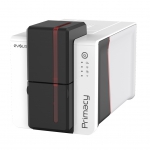
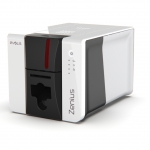
How to Perform an Advanced Cleaning on the Evolis Zenius 2 or Primacy 2
For the Evolis Zenius 2 or Primacy 2 to operate correctly, maintain optimal print quality, and keep the manufacturer's warranty valid, the printer must be cleaned regularly by following the appropriate cleaning cycles.
For optimum print quality, Evolis recommends performing a full cleaning every time the ribbon or film is replaced. It is the user's responsibility to ensure cleaning cycles are performed as required to keep the equipment in perfect working condition and maintain warranty coverage.
When to Perform an Advanced Cleaning
If using your printer in normal dust conditions
- Every 4 regular cleaning cycles (sooner if usage is intensive)
- After a long period of inactivity
If using your printer in dusty conditions
- Every 1000 cards printed (sooner if usage is intensive)
- Before installing a new ribbon
- If print quality decreases
- If card jams persist
- After a long period of inactivity
The recommended way to start a cleaning cycle is through the Evolis Premium Suite 2 software.
Required Cleaning Kit
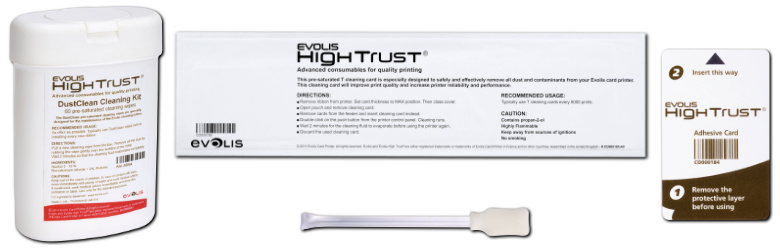
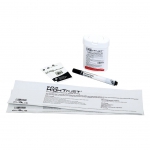
You will need the Evolis Advanced Cleaning Kit (ACL002):
https://www.aptika.ca/product/evolis-advanced-cleaning-kit-roller-printhead-zenius-primacy-acl002/
- 1 x T-shaped cleaning card (single use)
- 1 x adhesive cleaning card (single use)
- 1 x cleaning swab / cleaning pen
- 1 x cleaning wipe
Signs That Cleaning Is Required
- The cleaning LED is blinking while the power button remains steady.
- Print quality has decreased.
- Cards are not feeding or transporting correctly through the printer.
Performing the Advanced Cleaning Cycle
Step 1 - Prepare the Printer
- Press and lift the printer cover.
- Remove the ribbon.
- Close the printer cover until you hear a click.
- Open the card feeder and remove all cards.
-
Slide the card thickness selector to maximum thickness.
- Open the card feeder to access it
- Slide the card thickness gauge to maximum thickness
Step 2 - Start the Cleaning Wizard
- Open Evolis Premium Suite 2.
- Click the "Assistance & Maintenance" button.
- In the left menu, click "Cleaning."
- Under "Advanced Cleaning," click the Start Cleaning button. The wizard will start.
Step 3 - Use the T-Shaped Cleaning Card
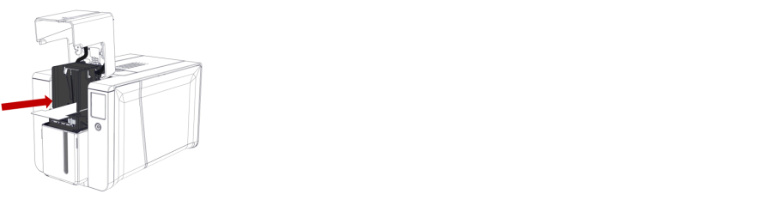
- Open the packaging of the T-shaped cleaning card.
- Click Next until the Cards and Ribbon LED is flashing or the touch-sensitive screen indicates to insert the T-shaped cleaning card. Insert the card until it is drawn into the printer.
- When the printer ejects the T-shaped cleaning card, discard it.
Step 4 - Use the Adhesive Cleaning Card
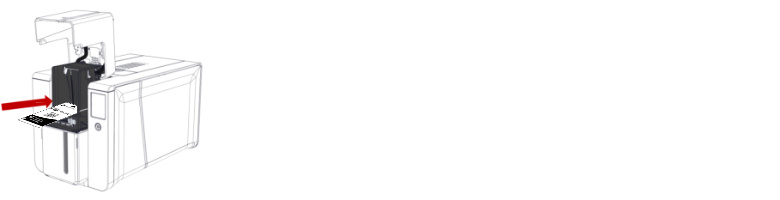
- Remove the protective film from the adhesive cleaning card and hold it with the adhesive side upwards.
- When the Cards and Ribbon LED is flashing / the touch-sensitive screen indicates, insert the adhesive cleaning card through the card feeder or manual card feeder depending on the printer until it is drawn into the printer.
- When the printer ejects the adhesive cleaning card, discard it.
- Reset the card thickness selector in accordance with the cards that you will print on.
Cleaning the Print Head
The print head is a fragile component. Do not touch the print head with your fingers or any object other than the tip of the cleaning pen / cleaning swab. Avoid any contact between the print head and any metal or sharp objects. Protect the print head and its components from any discharge of static electricity.
Steps
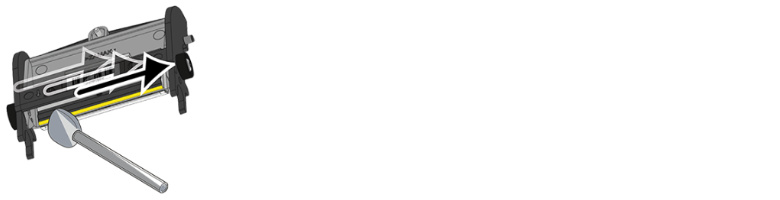
- Press and lift up the printer cover.
- If necessary, push back the protective cover of the print head.
- On the cleaning swab, squeeze the middle of the tube until the alcohol impregnates the swab / Remove the cap from the cleaning pen.
- Gently rub the tip of the cleaning swab / cleaning pen from left to right across the print head a few times, until the tip removes no more residue.
- Discard the cleaning swab / Put the cap back onto the cleaning pen.
Cleaning the Dust Filter
The dust filter is located in the printer cover, just over the fan. Its purpose is to prevent dust and airborne particles from entering the printer's internal mechanism. Over time, dust accumulation can restrict airflow, reduce cooling efficiency, and allow contaminants to circulate inside the printer, potentially affecting print quality and internal components.
Regular inspection and cleaning of the dust filter helps maintain proper airflow, protects sensitive internal parts, and ensures consistent printer performance, especially in environments where dust levels are higher than normal.
Steps
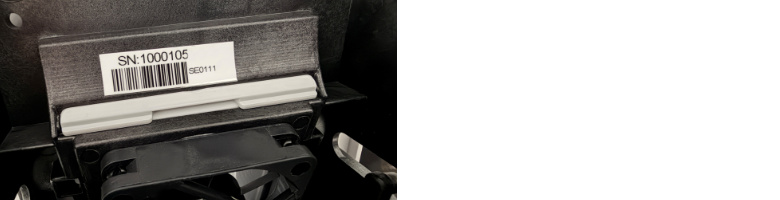
- Slide the dust filter upwards using its groove and remove it from its compartment.
- Wipe a cleaning wipe across each side of the dust filter.
- With its groove at the top and facing you, slide the dust filter back into its compartment until you hear a click.
Final Steps
- Reinstall the ribbon.
- Close the printer cover, pressing until you hear a click.
- Reload your cards into the card feeder.
You can now start printing again.
If the Problem Persists
If the cleaning signal is not cleared after you performed the advanced cleaning or the print quality has not improved, contact us for more information.
Tagged on: evolis, advanced cleaning, primacy 2, zenius 2