
 Connexion

Archive
Tous les articlesJuillet 2026Juin 2026Mai 2026Février 2026Janvier 2026Décembre 2025Octobre 2025Septembre 2025Juillet 2025Octobre 2024Juin 2024Février 2024Janvier 2024Novembre 2023Octobre 2023Août 2023Avril 2023Mars 2023Février 2023Janvier 2023Décembre 2022Juillet 2022Mai 2022Mars 2022Décembre 2021Novembre 2021Octobre 2021Septembre 2021Août 2021Juillet 2021Juin 2021Mai 2021Avril 2021Mars 2021Février 2021Janvier 2021Décembre 2020Novembre 2020Octobre 2020Juillet 2020Mai 2020Avril 2020Mars 2020Février 2020Janvier 2020Octobre 2019Septembre 2019Juillet 2019Mars 2019Février 2019Octobre 2018Septembre 2018Août 2018Juillet 2018Juin 2018Mars 2018Février 2018Janvier 2018Décembre 2017Novembre 2017Juillet 2017Juin 2017Avril 2017Février 2017Janvier 2017Août 2016Juin 2016Février 2016Novembre 2015Octobre 2015Septembre 2015Juillet 2015Juin 2015Janvier 2015Novembre 2014Octobre 2014Septembre 2014Août 2014Juillet 2014Juin 2014Mai 2014Avril 2014Février 2014Janvier 2014Octobre 2013Septembre 2013Juillet 2013Février 2013Octobre 2012Septembre 2012Mai 2012Janvier 2012Novembre 2011Juillet 2011Février 2011Janvier 2011Décembre 2010Octobre 2010Avril 2010Février 2010Janvier 2010Septembre 2009Mai 2009Février 2009Janvier 2009Juillet 2008Décembre 2007Septembre 2007Juillet 2007Avril 2007Avril 2006Mars 2006Novembre 2005Mai 2005Octobre 2004Août 2004Juin 2004Mai 2004Avril 2004Mars 2004Décembre 2003Mai 2002Novembre 2000How to Calibrate a Ribbon Sensor on a Magicard Enduro
If your ID card printer is not properly recognizing your ribbon, either by not recognizing the type of ribbon or acknowledging that a ribbon has been replaced, you will need to calibrate the ribbon sensors on your Enduro printer. Please note that these steps will work for all printers in the Enduro line including the Enduro, Enduro+, and Enduro 3e.Magicard Support Utility
To begin, you will need the Magicard Support Utility icon on your computer's desktop. If you do not have this, you will need to download and install the Magicard Support Utility. To do so:
- Go to the Magicard website and locate the Support Utility page in the support section.
- Click the Magicard Support Utility link and save the file to your PC. DO NOT run this file from the Internet.
- To install the Utility, navigate to the location where the file was saved and double-click on the icon to start the installation.
- Select Run and use the defaults to install the utility.
To Calibrate Your Printer
- Double-click the Magicard Support Utility icon that should now be on your desktop.
- Select USB from the Port drop down and select your printer.
- Type DEALERSERVICEON in the Quick Command Box.
- Select the Statistics and Commands tab, enter FCL in the Quick Commands field, and click Send.
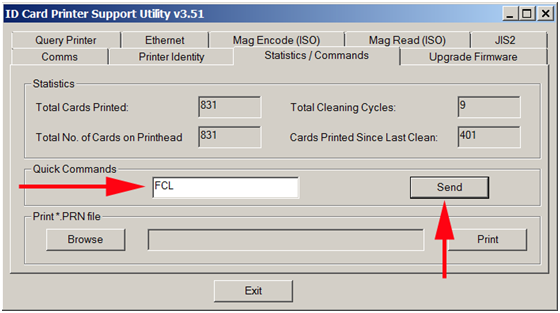
- The display on the printer will show the progress of the calibration and then restart.
- Type DEALERSERVICEOFF in the Quick Command Box to turn the dealer service mode off.
Your Enduro printer ribbon sensors should now be calibrated and working properly.
Tag: magicard,calibration,sensor,enduro
Favoris des clients


Magicard Monochrome MA1000K Black - 1000 prints
$35.00$40.00